Showing posts with label android tricks. Show all posts

Tuesday, 3 May 2016

Use your phone as microphone


Do you know that you can turn your android phone as microphone for your pc. to turn your android device into a microphone, you need to install a tiny app called WO Mic on your Android phone. This app supports all three connectivity options, USB, WiFi, and Bluetooth.here are The steps on how you can use your Android device as a microphone using Wo Mic app:

Requirements:

USB connection

If you want to connect via USB, follow these steps:
  1. Launch WO Mic app on your device
  2. Go to Settings -> Transport and choose ‘USB’.
    wo mic app usb transport
  3. Enable USB debugging on your device
    • For Android devices running Android 3.2 or older, you can find this option in Settings -> Applications ->Development.
    • For devices running Android 4.0 and newer, go toSettings -> Developer options.
    • For devices running Android 4.2 and newer, go toSettings -> About phone and tap Build number seven times. Return to the previous screen to find Developer options.
  4. Go back to the main menu and tap ‘Start’ to start the service
  5. Connect your phone to PC via USB cable
  6. Launch WO Mic Client program on your computer
  7. Select Connection -> Connect then choose ‘USB’ and click OK.
    wo mic client usb connect
  8. Wait a few seconds and the client should be connected. You can now use your android device to make recording or chatting on your PC.

WiFi connection

If you want to connect via wifi, follow these steps:
  1. Launch WO Mic app on your Android phone
  2. Go to Settings -> Transport and choose ‘Wifi’.
    wo mic app wifi transport
  3. Turn on Wifi on your phone and PC. (Note: Make sure that both your computer and your Android device are connected to the same WiFi network in order for the app to work.)
  4. Now tap ‘Start’ on the main menu and should see an IP address appear on the screen. Note down the IP address provided.
    wo mic app wifi connect
  5. Launch WO Mic Client program on your computer
  6. Select Connection -> Connect. Choose ‘Wifi’ and enter the IP address that you’ve noted down.
    wo mic client wifi connect
  7. Once you’re done, click OK.

Bluetooth connection

If you want to connect via bluetooth, follow these steps:
  1. Launch WO Mic app
  2. Go to Settings -> Transport and choose ‘Bluetooth’.
    wo mic app bluetooth transport
  3. Turn ‘ON’ Bluetooth on your Android phone and PC
  4. Connect both the devices
  5. Tap ‘Start’ to start the WO Mic
  6. Run WO Mic Client program
  7. Select Connection -> Connect. Choose ‘Bluetooth’ and you can see that your device selected automatically. If it does not appear in the list, then check if they are paired correctly.
    wo mic client bluetooth transport
  8. Once done, click OK and enjoy the mic.

Tuesday, 26 April 2016

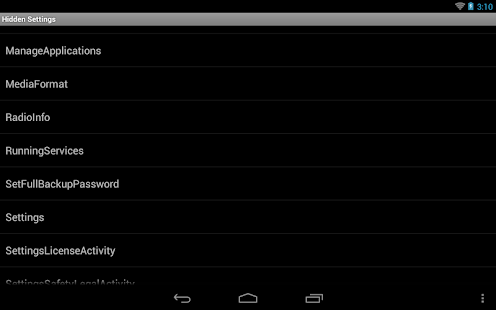
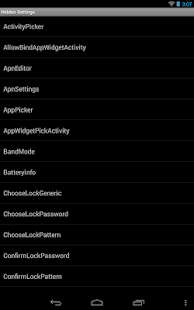
Find hidden android setting

Saturday, 23 April 2016

Run android 6.0 on pc


 You really can install Android 6.0 Marshmallow onto your Windows PC and run it just like you’d run it on a phone or tablet. Fiztsimmons Weekly has posted a very handy guide for getting Marshmallow onto your PC, although you should be warned that it involves several steps and won’t be as simpler as installing one program.
Here are the three programs you’ll need to install to make this work:
  • Android-x86 from Sourceforge — obviously, this is how you’ll get the Android source code onto your computer.
  • UNetbootin — you’ll use this to create and format a hard drive partition.
  • GParted — this program will help you manage your partition
You’ll basically use these three programs to create a separate portion of your hard drive that will be devoted to Android 6.0 and will have 64GB of storage space to play with. You’ll then be able to pick which system you want to run when your PC boots up so it will be possible to use either one if you want.
To see the entire step-by-step guide for installing and running Android 6.0 on your Windows PC, check out the entire guide at this link.

Tuesday, 23 February 2016

Block youTube aDs on your android *root


requirements:
1)root permission
2)xposed installer
3)Youtube ad away
process:
step1:
If you have rooted your android then goto next step.
if your phone is not rooted then click here.
step2:
download
xposed installer(Link at the end)
youtube ad away(After installing xposed search for youtube adaway)
step3:
install apps
step4:

open xposed installer an goto modules and cheek box of youtube adAway then reboot 
Step5:
after reboting your device goto xposed installer>modules and click on youtube adAway you will get message like this

            if you receive ErrOr message then goto step4


         ---like Android tricks----
www.facebook.com/androidtricksx


xposed installer Apk (click here) 

Thursday, 4 February 2016

Find hidden WiFi networks


 inSSIDer
Inssider helps you in finding hidden wifi in your area. 
If a smart wifi admin lived in your area they set wifi ssid ti hidden, normally you can't see wfi name and signal in your pc and android mobile. But If you download this amazing app , you can see hidden ssid wifi signal and also find low range wifi signal in your areas
 With this android app you can also see lots of info related to wifi connection.
Download inSSider

Monday, 25 January 2016

Extend battery life


Today we can do almost everything with your smartphone but it also means our devices have turned into battery hungry machines.
The days of charging your phone a few times a week is no longer possible.
Fortunately for Android users, you can squeeze a few extra hours out of your device when you need it most. When running low, simply go into settings, click on Battery, tap the Menu button and select battery saver mode. It will limit non-essential features like location services and background data, so you can get an extra 90 minutes out of your battery when you need it most.
Like Androidtricksx